Output
The output pane sits opposite the editor and shows the results of each run. It updates in place each time your code runs, so there's no growing log to scroll through.
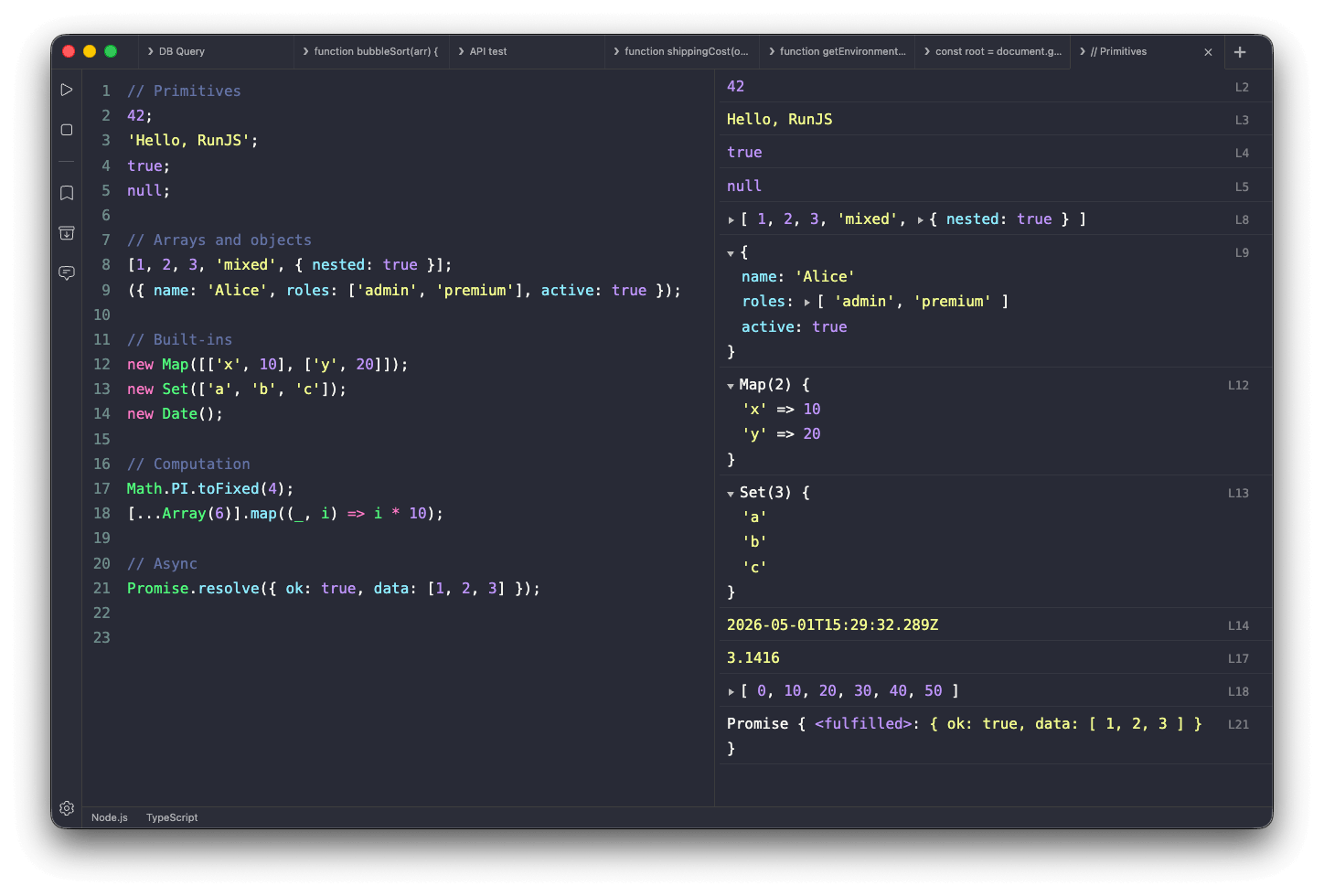
Where output comes from
Three things produce output:
console calls: Anything written through console.log, console.info, console.warn, console.error, console.table, and so on appears in the output pane, with warnings and errors styled differently from regular logs.
Top-level expression results: When Auto Log is enabled in Settings → General, the value of each top-level expression is displayed in the output pane. You can type 1 + 2 on its own line and see 3 in the output.
Errors: Uncaught exceptions and unhandled promise rejections are surfaced with the message and stack trace, pinpointing the line where the error originated.
Inspecting values
Objects, arrays, Maps, Sets, and other complex values are shown as expandable trees. Click to drill into nested properties, or expand everything to scan an entire structure at once. Functions, classes, and Promises are rendered with enough detail to identify them without expanding.
Strings are displayed verbatim. Quotes are only added when a string is nested inside another value.
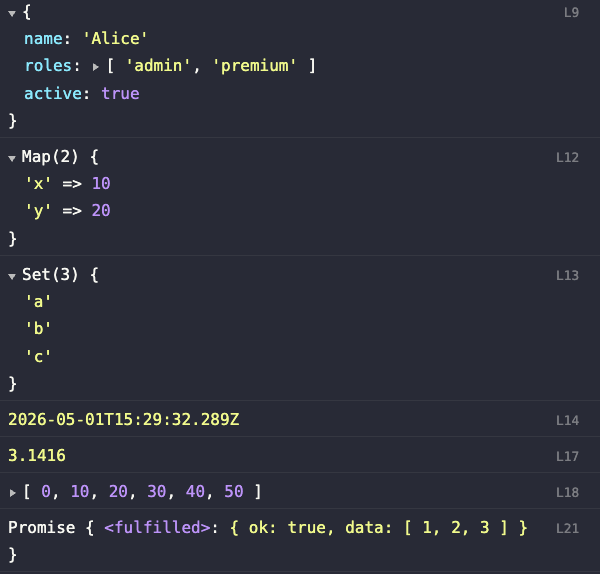
Tracing output back to source
Each output entry is tied to the line of code that produced it. RunJS makes this connection visible in two ways:
- Hovering over an entry highlights the corresponding line in the editor.
- Each entry displays its source line number on the right. Clicking it moves the editor caret to that line, which helps in longer scripts.
Entry actions
Each entry has a three-dot menu on the right with two actions:
- Copy: copies the value to the clipboard.
- Explain Result: opens the AI Chat sidebar and asks the configured model to explain why the surrounding code produced this result.

Related features
- Logpoints: log a value without modifying your source code.
- Magic Comments: annotate your code to control how individual lines or blocks are evaluated and displayed.
- Web View: render HTML and DOM output instead of a structured log.