Snippets
Snippets are reusable blocks of code you can save and quickly drop into the editor. They're useful for boilerplate you write often, such as fetch helpers, regex patterns, or test scaffolding.
You can open the Snippets window from the Tools menu: Tools > Snippets.
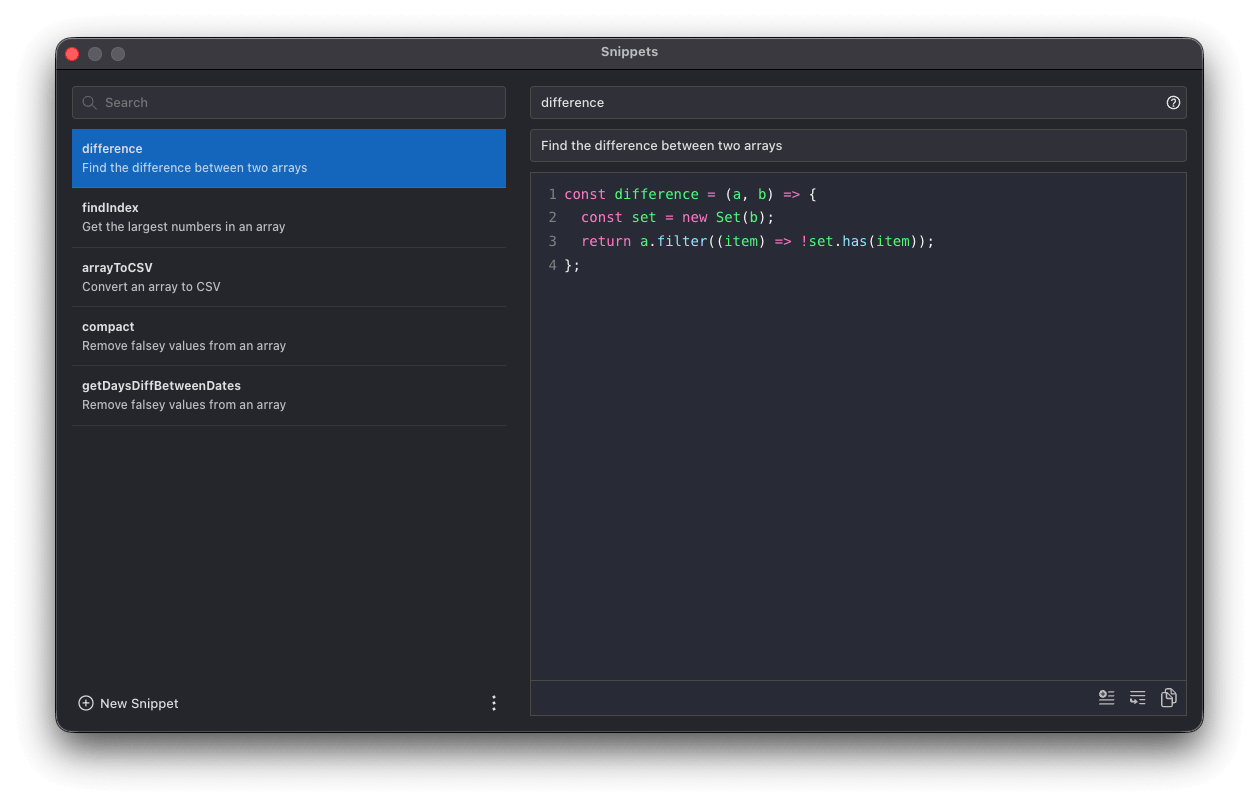
Each snippet has three parts:
- Name: used to identify the snippet and to match it in autocomplete.
- Description: an optional summary that's displayed alongside the snippet in lists and autocomplete suggestions.
- Body: the code that gets inserted.
Creating snippets
Click the plus icon in the bottom left of the Snippets window to create a new, empty snippet, then fill in its name, description, and body.
You can also create a snippet directly from the editor's context menu. The current selection is used as the body, or the entire contents of the editor if nothing is selected.

Inserting snippets
Use the buttons in the bottom right of the Snippets window:
- Insert Snippet inserts the snippet at the cursor in the current tab's editor.
- Insert Snippet in New Tab opens a new tab and inserts the snippet there.
Snippets are also available through the editor's autocomplete, matched by name as you type. Selecting a snippet suggestion inserts its body.

Importing and exporting
Use the options menu in the bottom left of the Snippets window to import or export. Exporting saves your snippets as a JSON file, which is useful for backups, syncing between machines, or sharing a set with a teammate. Importing reads a previously exported JSON file and adds its snippets to your library.
