License Management
Activation
A RunJS license can be purchased from the pricing page. After buying a license, you will receive an email containing your license key.
To use your license key to activate RunJS, start by clicking on the Activate button in the top-right corner of the main RunJS window. Alternatively, you can click on Activate in the app menu.
This will bring up the activation modal. Paste your license key into the text field and click Activate.
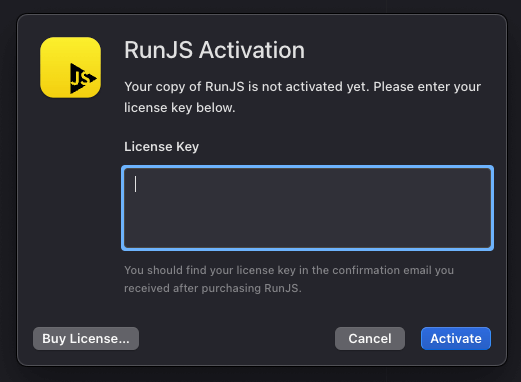
You can use your license key to activate RunJS on two devices at the same time. If you'd like to activate RunJS on a different device, you can deactivate it on a previous device to free it up for use on a new device.
Deactivation
There are two ways to deactivate RunJS. One is via the RunJS app by clicking Manage License in the app menu. This opens the license manager modal, where you can click the Deactivate License button to deactivate RunJS.

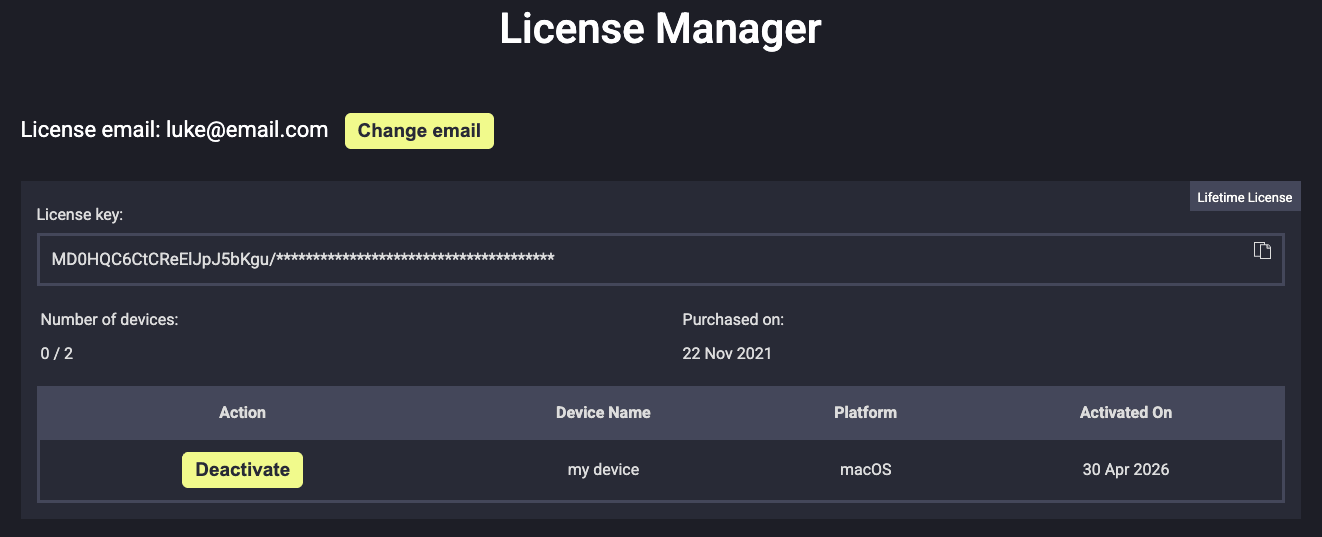
Alternatively, you can manage which devices RunJS is active on via the online license manager. You can log into this by entering the email address you used to purchase your RunJS license. You will then be sent a login link that will give you access to the manager.
From here, you can see your license key(s) and a list of devices that you have activated RunJS on. Clicking on Deactivate will deactivate RunJS on the associated device.